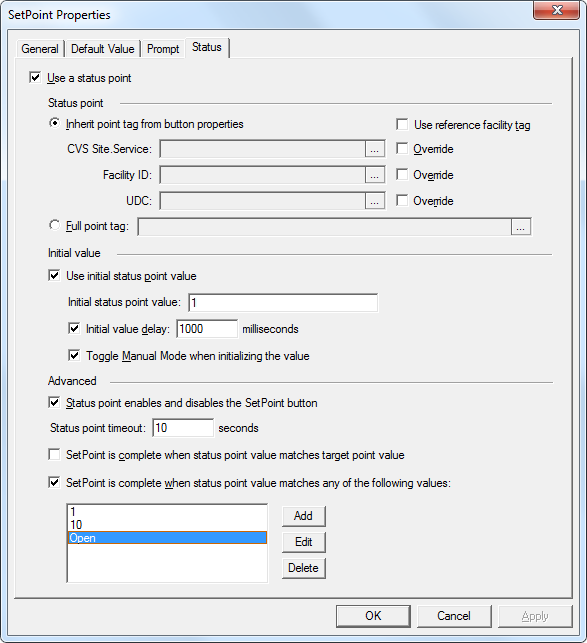
The Status page is where you optionally configure a status point for the button. A status point is a regular CygNet point whose current value represents the progress and completion state of the operation initiated by changing the target point’s value via the SetPoint Button.
As with the target point, the status point can be very explicitly defined allowing a templated point tag, inheriting some or all of the point identifier properties from the button properties or from a reference facility. Alternatively you can specify a fully qualified point tag. Optionally when monitoring the status point you can set an initial specific value for the status point.
If the Allowed updates setting of the status point’s PNT configuration is set such that external setpoint updates are not allowed (for example, Internal Only), you must check the Toggle Manual Mode when initializing the value check box to successfully initialize its value. Be sure to configure security in your ACS to allow Manual Mode changes by your users. You can set a delay on the initialized value, allowing some time for the SetPoint operation to make its way to a device or PLC.
You can disable the button until the SetPoint operation is complete to prevent users from repeatedly clicking on the button, or to prevent other users running identical screens throughout the enterprise from modifying the same target point. You can set a timeout value in seconds for the status point monitoring operation to complete. Other advanced options include indicating that the SetPoint operation is completed when the status point value matches the specified target point value, or any of a list of completion values. The comparisons are case-sensitive and use the "*" and "?" characters for wildcard matching of monitored values.
Note: Unit conversions are never applied to the reading or initialization of status point values.
Click the following image to see an enlarged sample Status page:
The properties for each section or button on this page are described below.
The following table lists and describes Status page properties.
| Property | Description |
|---|---|
|
Use a status point |
Indicate whether you want to optionally use a status point to monitor the status of the SetPoint operation. |
| Status point | |
|
Inherit point tag from button properties |
Click to inherit the point tag elements from the values configured for the button object. Optionally you can override to inherit some or all of the point tag elements, or choose to use a reference facility. An inherited point tag is the default option for the point.
|
|
Full point tag |
Click ... to open the Select Point dialog box, then select the CVS Site.Service and point to use for the target point. |
| Initial value | |
|
Use initial status point value |
Click to indicate the use of an initial value for the status point. For example, say you have a register returned from a device in the field, and it says that a valve is "closed", you would have the option to initialize the status point value to something other than "closed" to avoid prematurely concluding that the operation has completed. |
|
Initial status point value |
Specify the initial value of the status point when doing a SetPoint operation. It is recommended that the status point value be the same data type as the target point value. Note: To disable other Studio screen elements using the same status point on other screens or views, this field must be populated and all elements must share the same initial value. |
|
Initial value delay |
Click to indicate whether there is a delay after the SetPoint operation, before the status point is initialized to the initial value. Specify the number of milliseconds to wait. There may be some time needed for the SetPoint operation to make its way to the device and you may want to wait for that to occur before status point monitoring begins. |
|
Toggle Manual Mode when initializing the value |
Click to toggle in and out of manual mode while initializing the value of the status point to allow read-back values. Note: This setting applies only if the Allowed updates setting in the status point's PNT configuration record does not allow "External" updates (for example, Internal only). Users must have appropriate permissions to edit the manual update mode for the point. See MANLEDIT for more information. |
| Advanced | |
|
Status point enable and disables the SetPoint button |
Click to indicate that the status point will enable and disable the SetPoint button. While the SetPoint operation is in progress (that is, it’s in the setpoint queue of a CVS), until the status point equals one of the completion values, or the status operation times out, the button will remain disabled. Once the operation fails or succeeds the button is re-enabled. If you have multiple screens within your enterprise using the same status point, the button will remain disabled until the status point equals one of the completion values or the status operation times-out. Note: Enable/disable relies on the status point changing, not the target point changing. |
|
Status point timeout |
Specify the number of seconds to wait for the status point monitoring operation to complete. The default value is the minimum value of 1 second. |
|
SetPoint is complete when status point value matches target point value |
Click to indicate that the SetPoint operation is complete when the status point value matches the specified target point value. Note: Unit conversions are never applied to the reading or initialization of status point values. Example Imagine a situation where a SetPoint operation tells a valve to open, but the status point actually monitors how open the valve is, with status point values changing from 0.0 through 1.0 (0.1, 0.2, … , 0.9). Let’s say the SetPoint operation sets the valve to 1. By setting this option, when the status point reaches 1.0, the status monitoring operation is complete and matches the specified target point value, thus the SetPoint operation is complete. |
|
SetPoint is complete when status point value matches any of the following values |
Click to indicate that the SetPoint operation is complete when the status point value matches any of a list of completion values, then specify a series of status completion values to match. Click Add, Edit and Delete to populate and modify the contents of this list. Note: The comparisons are case-sensitive with support for single-character wildcards (?) and multi-character wildcards (*) when specifying a status point value. For example, wildcards can be used when configuring a SetPoint Button to trigger and monitor standard Group Rollup HyperPoint scripts. See here for more detail. Example Imagine a situation where a SetPoint operation tells a valve to open, but the status point actually monitors how open the valve is. Depending on the value of the status point, you might add a value or values that represent that the valve is fully open, for example, 1, 10, OPEN, etc. Once the status point value matches any of these specified values, the SetPoint operation is complete. |
Note: The status point settings are also accessible within a scripting environment via the Status property.

|
|
|

